Client Portal Messaging and Comments: What to Look For
Client portal messaging and comments help teams keep client feedback, approvals, and project discussions organized in one place. This guide covers essential features, access controls, notifications, and how Stackby supports client collaboration.
Most client complaints have little to do with the actual work. They’re about communication: emails buried in cluttered inboxes, feedback lost in long email threads, and approvals that never arrive on time.
Client portal messaging and comments keep conversations connected to the work itself. Instead of scattering discussions across multiple apps, teams can exchange feedback, track approvals, and discuss project updates in one organized workspace.
When a client asks, “Where did I leave that comment?”, the answer should be easy to find. With a client portal that supports messaging and comments, feedback stays next to the task, approvals remain connected to the relevant file, and project discussions have a clear history.
This guide covers the features that matter when evaluating a client portal with messaging and comments, common mistakes to avoid, and how tools like Stackby support client collaboration. If you’re still planning your portal, start with this guide on how to create a client portal.
What Is Client Portal Messaging?
A client communication portal for project management is more than a chat widget attached to a dashboard. It gives clients and teams a shared space where conversations, comments, approvals, and status updates stay connected to the work they relate to.
The key difference is context. Email is a communication tool, while a client portal with messaging is a workspace where communication happens alongside project information. A structured workspace built with no-code database software can also help keep project records, client details, and discussions organized.
Consider a few common situations:
Design feedback: A client leaves a comment directly on a mockup instead of sending a vague email asking for logo changes.
Project approvals: A project manager mentions a client on a task to request approval, and the client receives a notification.
Invoice questions: A finance team adds a note to an invoice record explaining a discrepancy, visible only to authorized users.
Customer support: A support representative keeps the full conversation attached to the relevant record rather than spreading it across multiple email replies.
When discussions stay connected to their context, teams spend less time searching for information and more time acting on feedback.
Key Features to Look for in a Client Portal With Messaging and Comments
Not every client portal offers the same collaboration experience. These are the features worth evaluating before choosing a platform.
1. Real-Time Comments Tied to Records
The best client portal with task comments and mentions lets users comment on specific tasks, files, records, or project deliverables.
If comments live in a separate tab disconnected from the actual work, users may still need to switch between tools to understand the discussion. Record-level comments keep feedback and the relevant information together.
For example, a client reviewing a website redesign could leave feedback on a specific task. The designer can then respond, make revisions, and track the discussion without searching through unrelated messages.
2. Mentions and Notifications
A client portal with email notifications helps ensure that feedback reaches the right person at the right time.
Without notifications, a client could leave a comment that nobody sees for days. That delay can affect approvals, project deadlines, and the overall client experience.
Look for these notification features:
@-mentions: Notify specific team members or clients when their input is needed.
Email notifications: Keep users informed when they aren't actively logged in.
Thread-following options: Let users follow relevant discussions without receiving unnecessary alerts.
Notification controls: Allow users to manage which updates they receive.
Stackby supports a watching comments feature that helps users follow discussions and stay informed about relevant updates.
3. Permission Controls for Client Data
Not every client should have access to every project record.
For example, a marketing agency managing five client accounts must prevent Client A from seeing Client B's invoices, timelines, files, or comments. Poorly configured permissions can expose confidential information and damage client trust.
Look for a portal that lets you control what each client can view.
With Stackby, teams can share a specific view so clients see the information relevant to their projects without automatically accessing the entire workspace. Teams can also review view-sharing restrictions when managing access for different groups of clients.
4. Forms for Client Requests and Feedback
Messaging alone doesn't cover every client communication need. Clients may also need to submit project requests, upload files, complete intake details, or provide structured feedback.
A built-in form can make this process easier by collecting information in a consistent format.
With Stackby, custom forms can collect client requests and feedback directly into your workspace. Submissions become records that your team can review, assign, and act on.
For teams that handle recurring requests, online form builders can also help standardize information collection across client workflows.
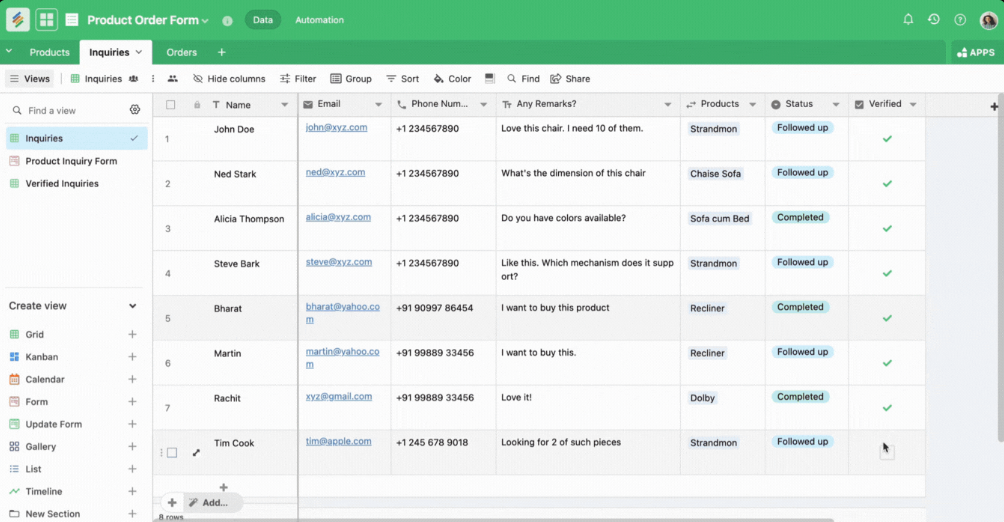
This reduces manual data entry and makes it easier to turn incoming requests into trackable work.
5. Granular Access Management
Client access should match the level of collaboration required for each project.
Workspace-level access may be suitable for long-term collaborators, but it can be broader than necessary for a client working on a single project.
Stackby provides different ways to manage access:
Invite a workspace user when someone needs workspace-level collaboration.
Invite a stack user when access should be limited to a particular stack.
Choosing the appropriate access level helps prevent clients from viewing other accounts' information and keeps collaboration organized.
Common Client Portal Messaging Mistakes
Choosing the right tool is only part of the process. How you configure and use it determines whether clients actually adopt it.
Treating Messaging as an Afterthought
Some teams choose a platform primarily for file storage or dashboards and only later realize that clients cannot leave feedback on individual items.
As a result, conversations return to email, and the portal becomes little more than a file-sharing space.
How to avoid it: Evaluate the commenting experience before committing to a tool. Check whether clients can comment on specific tasks, files, or records and whether your team can respond in context.
Ignoring Notifications
A portal may have excellent commenting features, but those features are ineffective if users never see new messages.
When clients receive no alerts, or teams are overwhelmed by irrelevant notifications, important feedback can go unnoticed.
How to avoid it: Configure notifications around meaningful updates, test mentions and email alerts, and let users follow the conversations that matter to them.
Giving Clients Too Much Access
Inviting a client as a full workspace member when they only need access to one project can expose unrelated records, unfinished work, or financial information.
How to avoid it: Define access requirements before sending invitations. Start with the narrowest permissions that support the client's work, and expand access only when necessary.
Client communication is just one part of the relationship. The right tools can also help manage contacts, projects, and ongoing work. See Stackby's guide to client management tools for more context.
Client Portal Comparison: Stackby vs. Airtable vs. Dedicated Portal Tools
A flexible database platform, a spreadsheet-database tool, and a dedicated client portal can all support collaboration, but they differ in how they organize data, manage access, and handle client-facing workflows.
The table below reflects the comparison provided in this article. Pricing and plan features can change, so verify the latest details on each provider's website before making a decision.
Feature | Stackby | Airtable | Dedicated portal tool (e.g., SuiteDash) |
|---|---|---|---|
Starting price | Free / $9 per user (Economy) | Free / approximately $20 per seat (Team) | Approximately $19/month flat |
Comments tied to records | Yes, on rows | Yes; depth may vary by plan | Yes, as a core messaging feature |
@-mentions and email alerts | Included | Included | Included |
Custom intake forms | Included across plans | Included | Often plan-dependent |
Relational database | Linked tables and 30+ column types, including formulas and lookups | Yes | Typically more limited relational capabilities |
Guest/client access | Unlimited free viewers across plans, according to the supplied comparison | Free-plan collaborator limits apply | Client access may depend on plan |
Automation runs on free tier | 100/month | 100/month | May require a paid add-on |
Branded or embeddable portal | Web embedding available | No native embed option, according to the supplied comparison | Available |
AI-assisted fields | AI Field Agents | Availability varies by plan | Not typically a core feature |
Which Type of Platform Is Right for You?
Airtable may suit teams that want a flexible database for organizing information and managing workflows.
Dedicated client portal tools may be a better fit for businesses that prioritize a purpose-built client-facing experience with portal-specific features.
Stackby may suit teams that want structured relational data, record-level comments, mentions, forms, and automations in one customizable workspace. Its platform features can support workflows that combine project records, client information, and collaboration.
The best choice depends on how much customization you need, how your clients collaborate, and how pricing scales as you manage more accounts.
How Stackby Supports Client Portal Messaging
Stackby is a no-code database platform rather than a traditional client portal product. Its flexible structure can help teams build client-facing workflows around their own projects, data, and collaboration needs.
Here are some ways Stackby supports client communication.
Record-Level Comments and Mentions
Each row in a Stackby table has an activity feed where team members can discuss tasks, ask questions, and share feedback. This keeps conversations connected to the relevant record instead of separating them into a general inbox.
Flexible Sharing Controls
Teams can share a particular view, table, or stack based on what a client needs to access. This makes it easier to separate client-facing information from internal working data.
Custom Forms for Client Intake
Forms can collect project requests, feedback, and other information from clients. Submissions flow into the workspace as records that teams can manage through their existing processes.
Notifications and Comment Watching
Users can follow relevant records and discussions to stay informed about updates. Notification settings help teams keep track of changes without following every conversation.
Automations Connected to Workflows
Stackby automations can help teams reduce repetitive work, such as sending confirmation emails, notifying team members, or updating statuses when specific workflow conditions are met.
A Branded, Embeddable Experience
Teams can embed a Stackby stack on a website to make information accessible within their own web experience.
For businesses managing multiple accounts, a custom CRM built without code can also work alongside the portal, keeping client records and related project information organized.
How to Set Up Your Client Portal for Better Collaboration
A well-configured portal makes it easier for clients to participate without needing constant guidance from your team.
Pair your portal setup with a client onboarding checklist so clients understand how to access information, leave comments, and follow project updates from the beginning.
Before inviting your first client, follow these steps:
Define your table structure. Decide how projects, tasks, files, and requests will be represented in your workspace.
Create a client-facing view. Share a clean view that contains the information clients need, rather than your full internal working view.
Assign the right access level. Use workspace-level or stack-level access based on the client's role and project requirements.
Configure notifications. Make sure relevant users receive alerts for comments, mentions, and important updates.
Test the workflow. Leave a comment, mention a user, submit a form, and verify that the expected notifications and permissions work correctly.
Review access regularly. Remove access when a project ends or a client relationship changes.
When a project wraps up, follow the appropriate process for deleting a user from a workspace or stack. Removing access promptly helps prevent former clients from retaining access to information they no longer need.
Frequently Asked Questions
What is client portal messaging?
Client portal messaging is a communication feature built into a client-facing workspace. It lets clients and teams exchange comments, feedback, and approvals on specific tasks or records instead of relying entirely on separate email threads.
Is client portal messaging different from regular chat apps?
Yes. Chat apps generally keep conversations separate from project records. A client portal with messaging and comments connects discussions to the task, file, or record being discussed, making feedback easier to track.
Do I need a dedicated portal tool, or can a database platform like Stackby work?
A database platform like Stackby may work well when you need structured data, customizable workflows, comments, forms, and sharing controls in one place. A dedicated portal may be preferable when you need specialized client-facing features. The right option depends on your workflow and access requirements.
How do client portal comments improve project management?
Comments attached to records keep feedback connected to the relevant work. Clients can approve designs, question invoices, or report issues in context, reducing confusion and unnecessary follow-up messages.
What permissions should I set up for client access?
Give clients access only to the views, tables, or stacks required for their projects. Avoid granting full workspace access when narrower permissions are sufficient, and review access when responsibilities change.
Can client portal messaging include notifications and mentions?
Yes. Many client collaboration platforms support @-mentions and email notifications. These features help ensure that the right people see new comments and respond to requests without unnecessary delays.
Conclusion
Client communication problems rarely come from a lack of effort. They usually stem from scattered tools, lost context, and feedback that never reaches the right person at the right time.
A client portal with messaging and comments addresses these issues by keeping discussions connected to the work they concern, whether that means a task, a file, an invoice, or a project record.
The platform matters, but so does the way you configure it. Clear permissions, useful notifications, structured forms, and thoughtful onboarding all contribute to a smoother client experience.
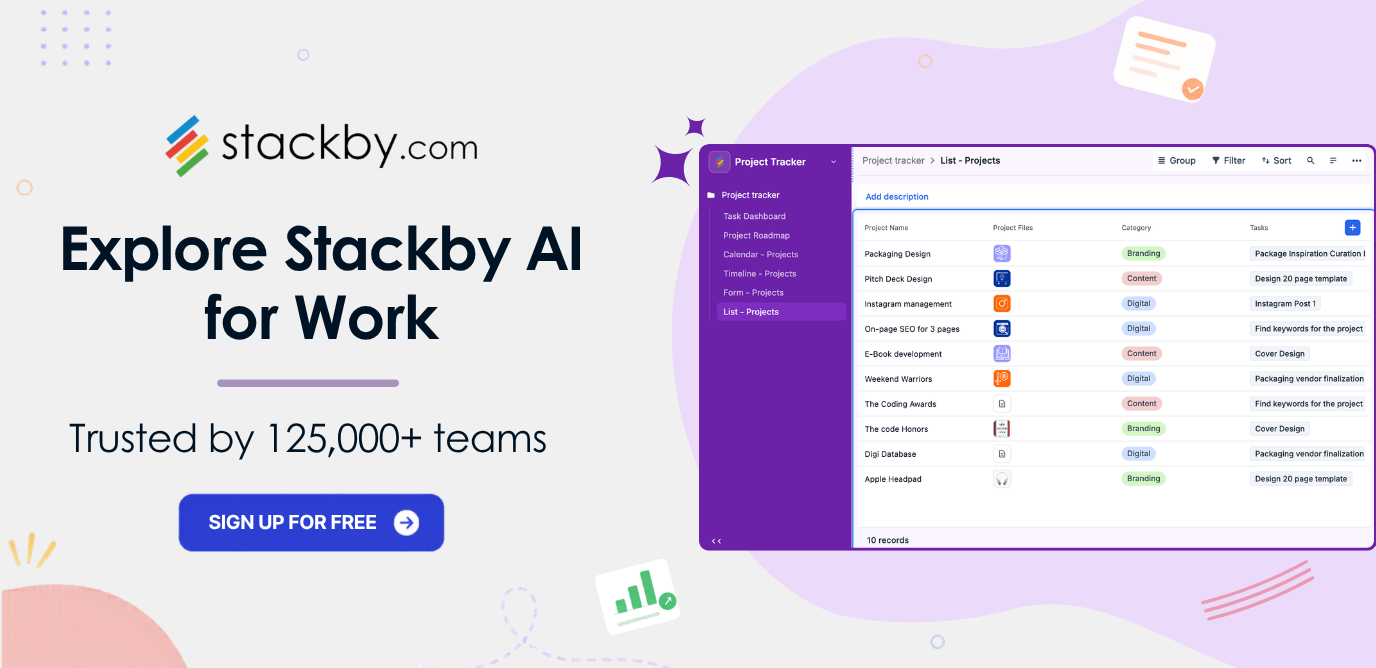
For teams that need flexible data management alongside client collaboration, Stackby brings comments, forms, sharing controls, and automations together in one workspace.
Key Takeaways
- Keep conversations connected to the work. Comments tied to tasks, files, and records make feedback easier to understand and act on.
- Prioritize notifications and mentions. Timely alerts help prevent comments and approvals from being overlooked.
- Configure permissions carefully. Clients should see only the information relevant to their projects.
- Use forms to structure incoming requests. Standardized submissions make client intake easier to manage.
- Choose a platform that fits your workflow. Database platforms and dedicated portals serve different needs, so consider customization, collaboration, access, and pricing before deciding.